How to use Breath & Plunge: your first session
From opening the app for the first time to reading the numbers a week later — in the order you will actually meet them, with the app's own default settings as the starting point.
You do not need to configure anything before your first session; the app ships with a sensible protocol already loaded. This guide follows that default path, and points out the two or three settings worth changing once you know what you are doing.
One thing before the steps. Breathwork, cold water and heat are not risk-free, and the app opens with a safety disclaimer for a reason: hyperventilation-style breathing must never be practised in water, while driving, or anywhere fainting would be dangerous, and heat should never be combined with alcohol. The app is a timer, not a medical device or a coach.
Choose the shape of your session
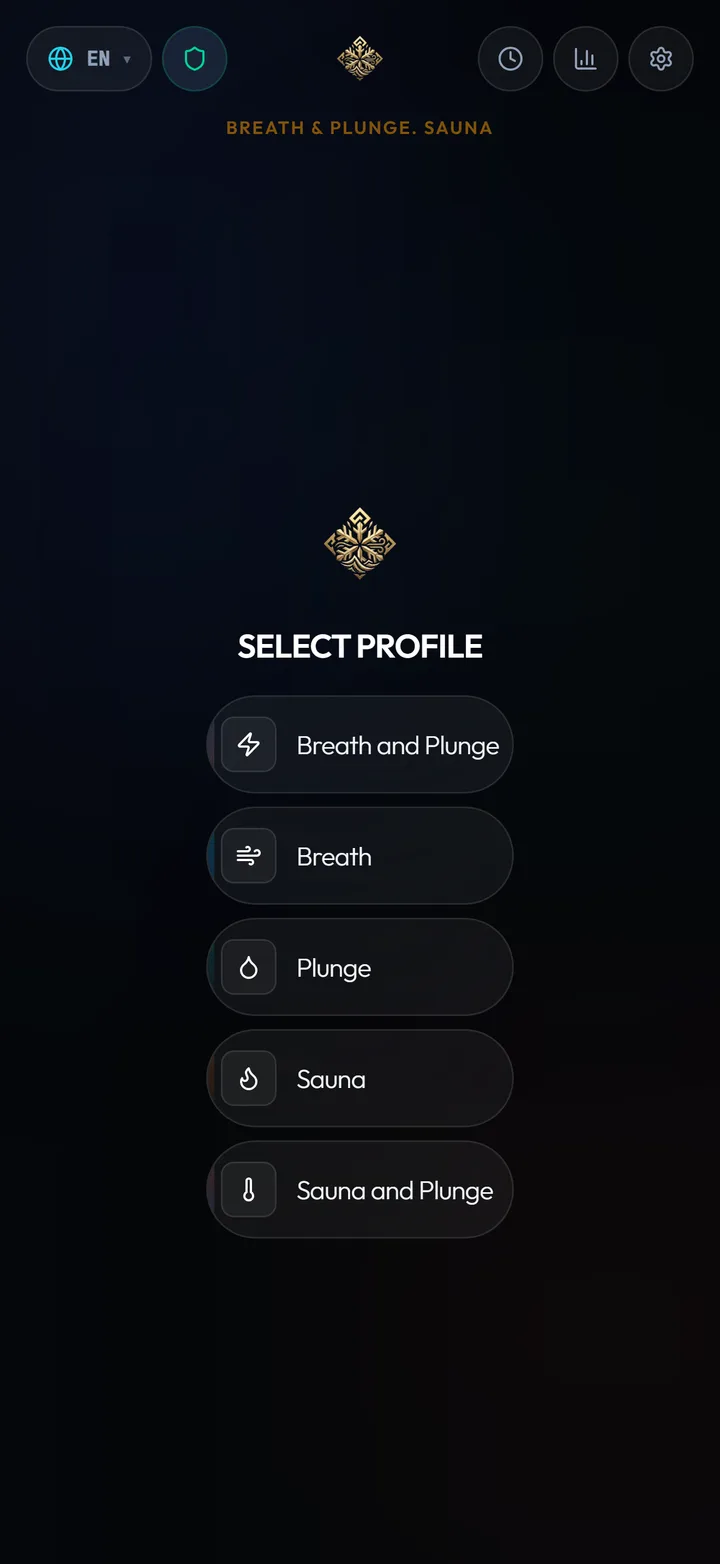
The first screen asks one question: what kind of session is this? Pick Breath if you only want breathing rounds, Plunge for cold water alone, Sauna for heat, or one of the two combined profiles — Breath and Plunge, or Sauna and Plunge — if you want both halves recorded as one session.
If you are new to all three, Breath on its own is the ordinary starting point: it is the only one of the five that needs nothing but a place to sit.
Leave the settings alone the first time
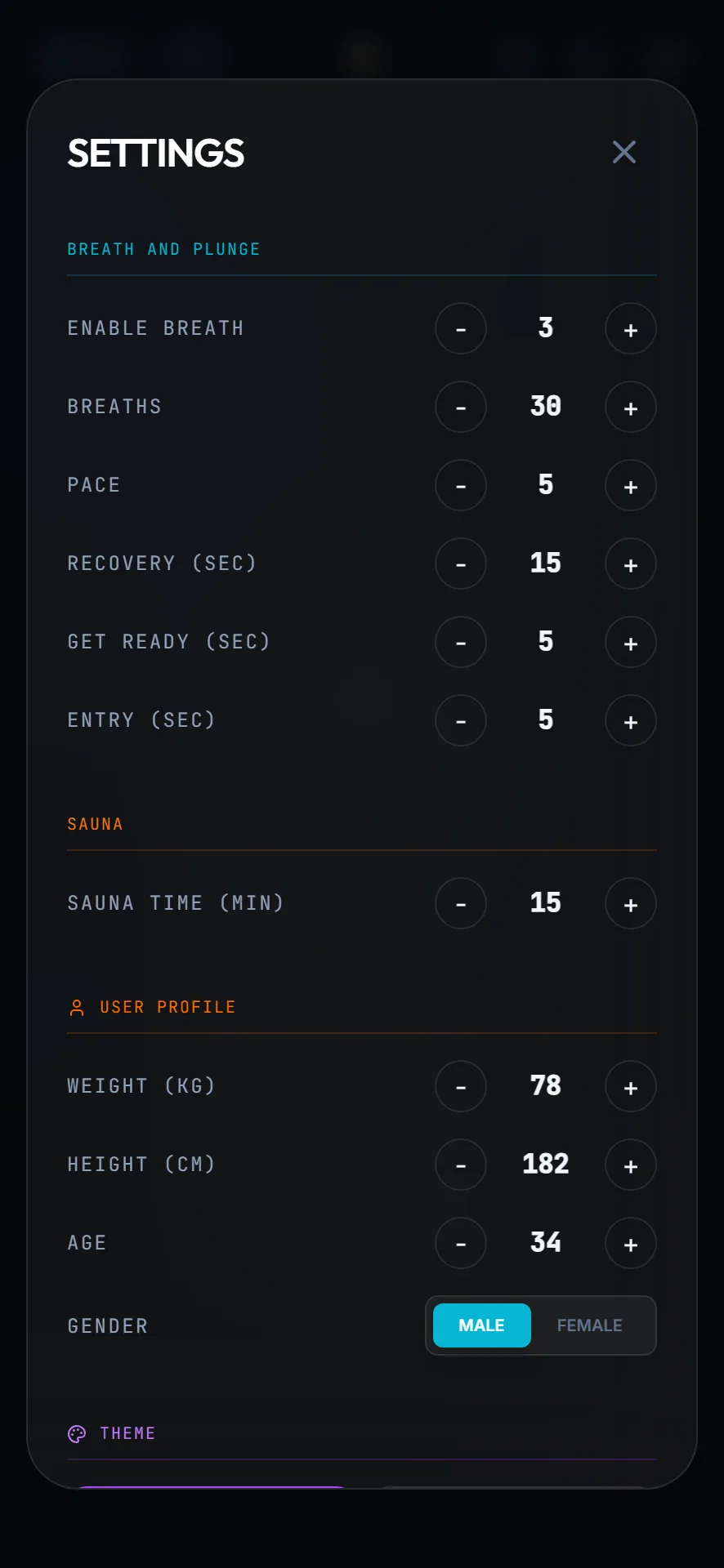
The default protocol is 3 rounds of 30 breaths at a 5-second pace, a 15-second recovery hold, and a 5-second countdown before things begin. That is a complete session as it stands.
The one setting worth opening on day one is your body profile — weight, height, age — because the fluid-loss and calorie estimates for sauna sessions are calculated from it. It stays on your device.
Afterwards, the settings people change first are the pace, if a 5-second breath feels rushed, and the number of rounds.
- Rounds
- Default 3. The count of breathing rounds in the session.
- Breaths
- Default 30 per round.
- Pace
- Default 5 seconds — one full breath, in and out, at the speed the animation asks for.
- Recovery
- Default 15 seconds — the hold after the recovery inhale.
- Get Ready / Entry
- Default 5 seconds each, before the session and before the water.
Follow the shape, not the numbers
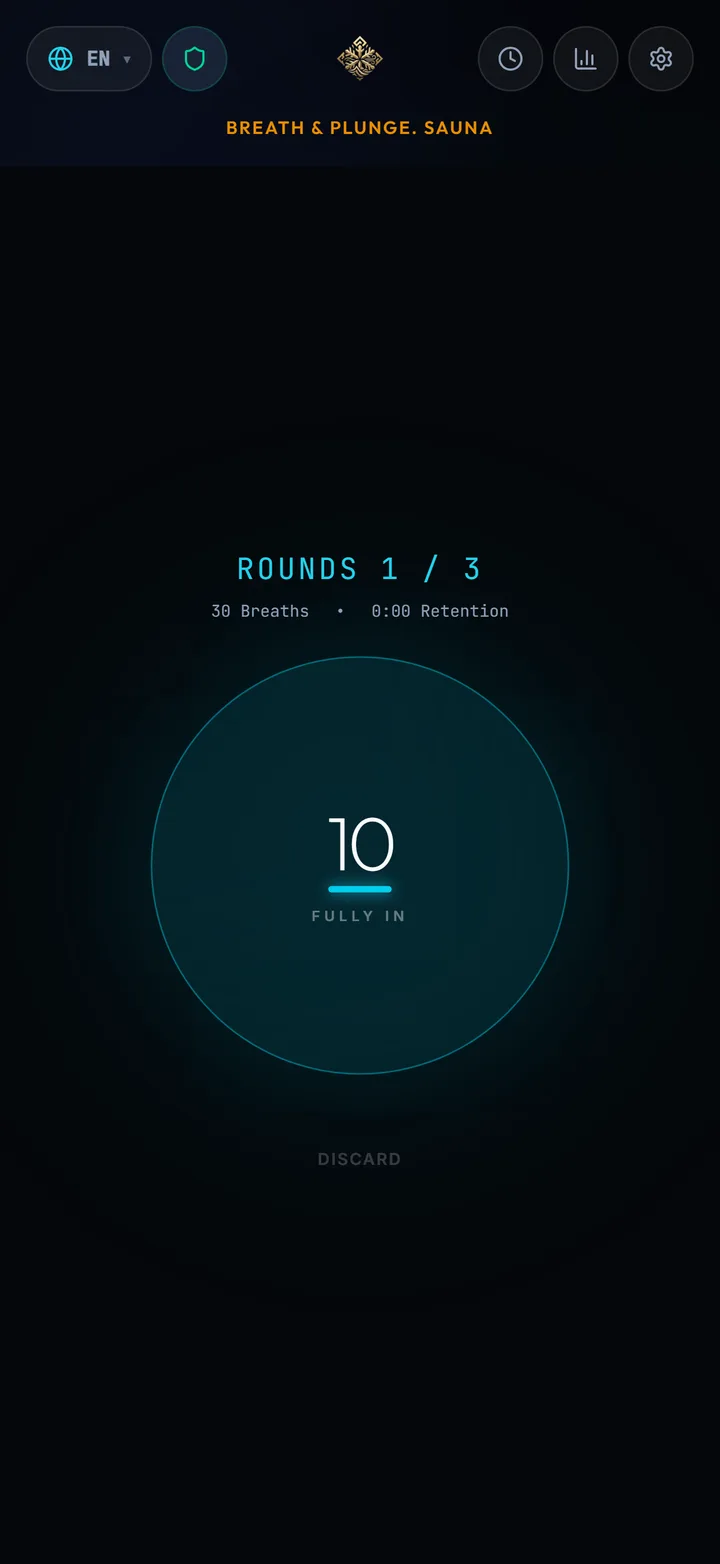
When the round starts, one shape expands and contracts on screen with "Fully IN" and "Let Go" prompts. Breathe with it and let the app do the counting — that is the entire point of the screen being so empty.
When the breaths are done the app moves you into the hold and counts upward. Do not chase a number here. The retention time is a result of the round you just did, and it is one of the values the statistics screen tracks for you over weeks.
The round closes with a recovery breath: inhale, and the app times the hold. Then the next round begins on its own.
Going into the cold
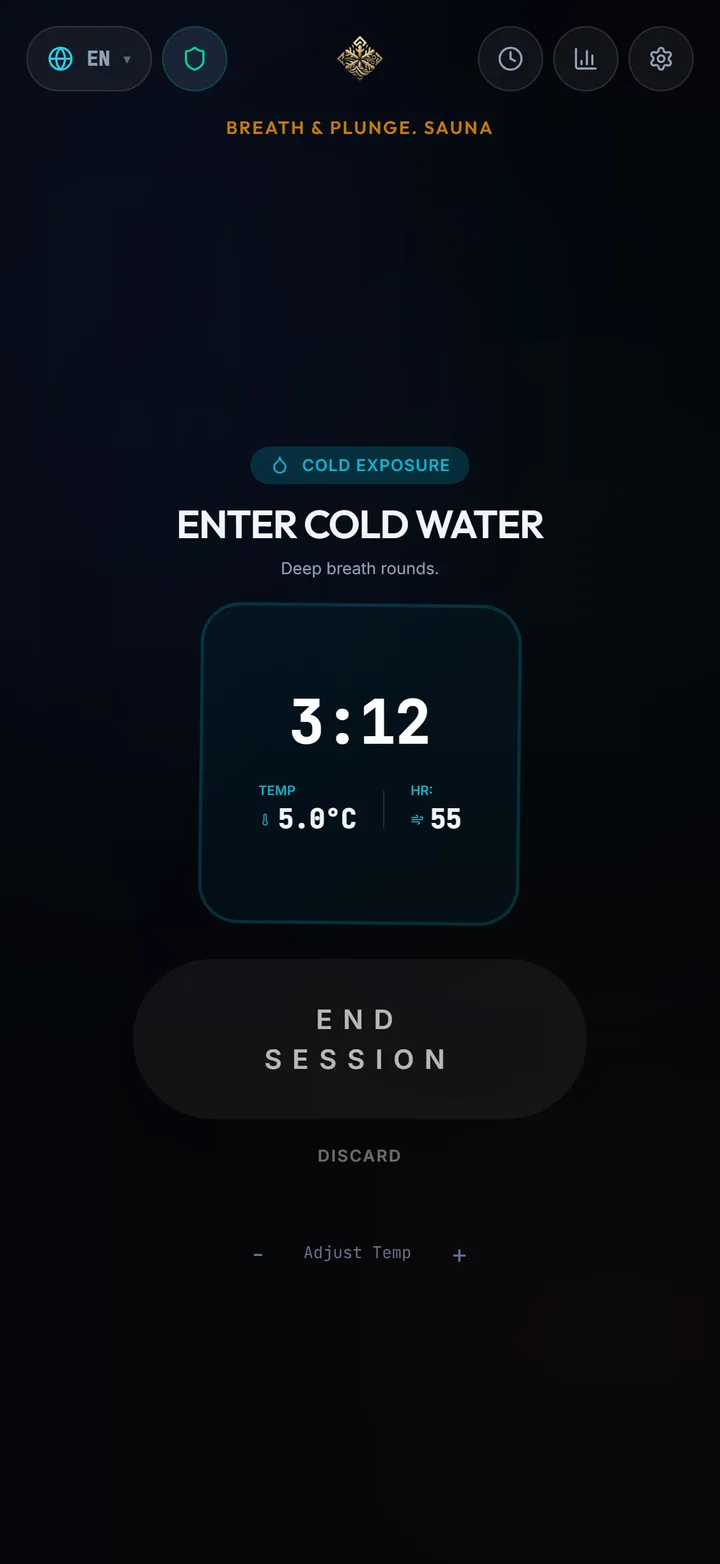
On the combined profile the app tells you when the breathing part is finished and waits — it does not push you into the water on a timer. When you are at the edge of the bath, start the cold section and the entry countdown gives you a few seconds to get in before the clock that matters starts.
Set the water temperature if you know it. It takes a moment and it is what turns the log into something comparable: the coldest water you have logged becomes a tracked statistic, and a two-minute plunge at 4 °C is a different session from two minutes at 12 °C.
The app keeps counting up. There is no target to hit and no alarm to beat — you end the session when you get out.
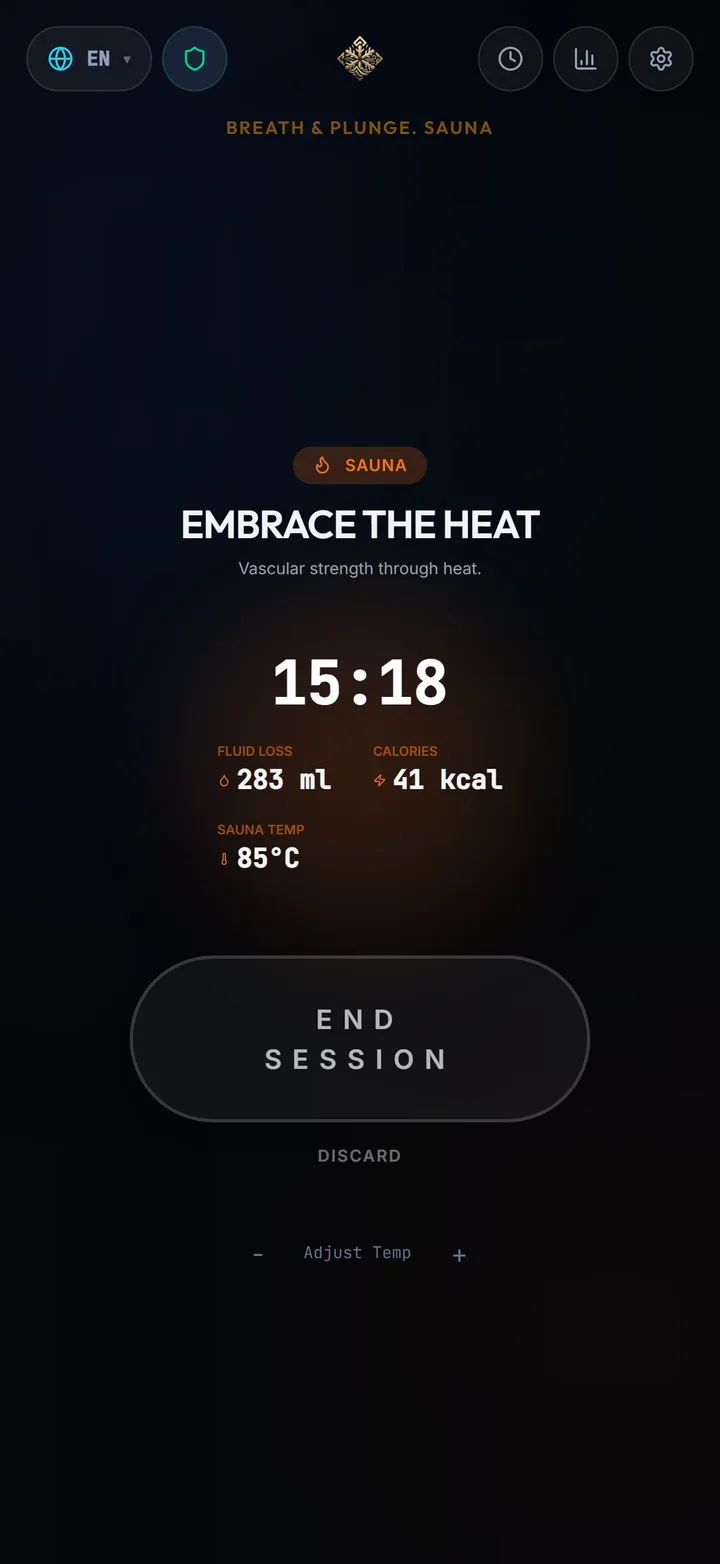
Sauna and contrast sessions
A sauna session runs against a target you set — 15 minutes by default — and logs the maximum temperature. The Sauna and Plunge profile chains the two halves together so the whole contrast round ends up in one record instead of two.
Fluid loss and calories are estimated from the session and your body profile. Treat them as a reminder to rehydrate rather than as a measurement.
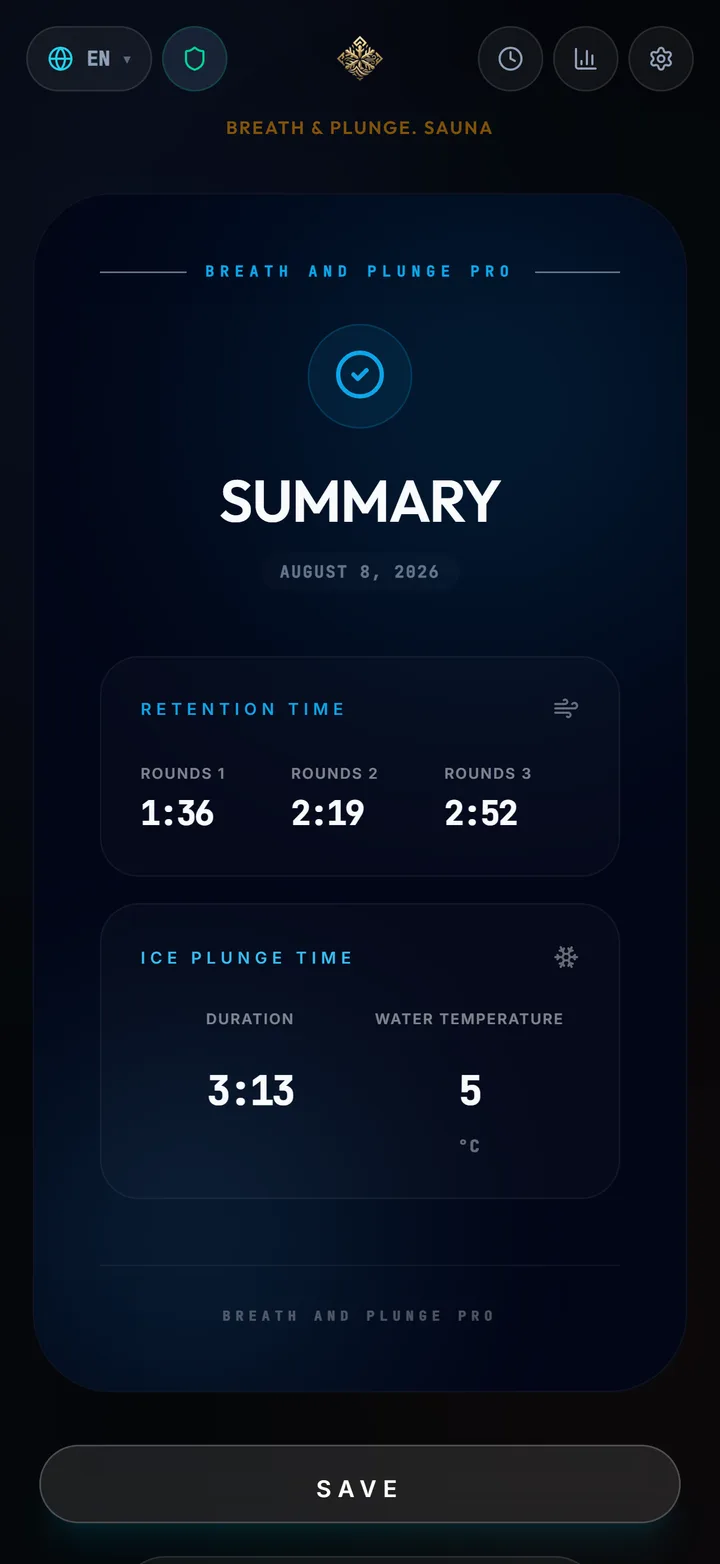
Read the summary before you save it
The summary appears before anything is written to your history, and you decide whether to keep it. Round holds are listed individually, next to the heart-rate drop for each one.
HR Drop is the number worth understanding. It is how far your heart rate fell during the round, and watching it settle into a range over weeks tells you more about how you are adapting than any single retention time does.
If you want the card as an image — for a training log, or to send to someone — the summary can be saved or shared from this screen.
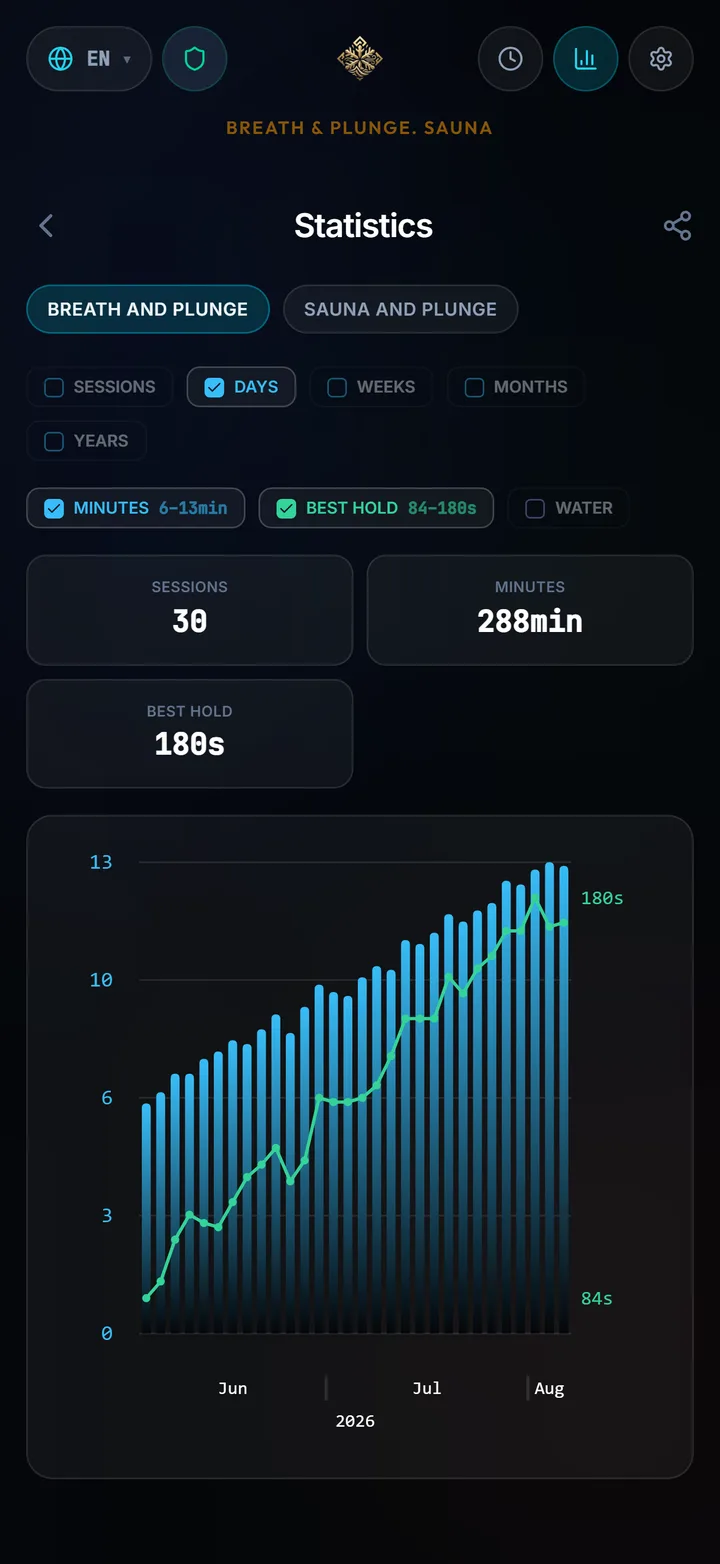
What to look at after a few weeks
History is the raw list. Statistics is where a practice becomes legible: switch the period to weeks or months and you get sessions, total minutes, best hold, coldest water, sauna temperature and accumulated estimates.
The useful habit is to check it monthly rather than after every session. Individual sessions vary with sleep, food and stress; the monthly view is where the trend actually shows.
Finally: export your data occasionally. Everything lives on the device, so a lost or wiped phone is a lost log unless you have a backup file.
Common questions
How long should my first cold plunge be?
The app does not prescribe a duration — it counts up rather than down, and the default minimum is two minutes. Start short, get out when you decide to, and let the log show the progression instead of setting a target in advance.
Do I have to do the breathing before the cold?
No. Breath, Plunge, and Sauna each exist as standalone profiles. The combined profiles are there for people who want both halves in one record.
What does HR Drop mean?
It is how far your heart rate fell during a breathing round. It is shown per round in the summary and tracked over time in statistics, as an indicator of how your body is responding to the practice.
Can I change the protocol mid-session?
No. Settings are applied when a session starts, which keeps every logged session comparable. Change them from the home screen before you begin.
What happens to my history if I reinstall the app?
It is deleted, because everything is stored locally with no cloud copy. Use Export in Settings to create a backup file first, then Import after reinstalling.
Start your first session
Breath & Plunge is on the App Store and Google Play, with a 14-day free trial on both the monthly and yearly plans.
See every screen and setting
Want the reference rather than the walkthrough — all five profiles, every setting field and every metric the app records?
Read Full Article